
Overview
The below documentation walks through deploying the Alpaca Trading Application code to Azure Kubernetes Service (AKS) using a CI/CD driven, infrastructure as code approach. The pipeline builds a Docker image containing the compiled Go application and deploys it to the Kubernetes cluster. This guide contains all the required information to deploy the application to AKS, from building the container image to configuring Kubernetes resources and managing secrets.
Overview of what’s configured:
-
Writing the Dockerfile that contains the configuration for the container image to compile and run the Go code.
- Developing the Kubernetes Manifests and deploying them to AKS
- Building a CI/CD pipeline to build/push final image to Azure Container Registry and refence the ACR image in deploying to AKS.
Creating a docker container for Golang code
Beginning the app deployment process – The Dockerfile sets up the environment for the Trading Application using a multi-stage build. First, it compiles the application in a dedicated build container, then copies only the compiled binary into the final runtime image. This approach produces a smaller, more secure final image.
Sections within the code:
- FROM goland:1.24-alpine AS build: Sets the base image for compiling the code to Go 1.24 on a small linux distro called Alpine. As build gives a name to the stage, which is referenced later.
- RUN apk add ca-certificates: Installs Public CA Certificates to enable fetching modules from private or HTTPS sources.
- WORKDIR /app: Sets the working directory to the /app directory where all the code will be stored and work will be preformed.
- COPY/RUN go: Copies the Go module files and downloads the dependencies.
- COPY/RUN CGO_ENABLED=0 GOOS…: copies the rest of the source code and builds a statically linked binary that produces a lightweight, self contained executable.
- Runtime Stage: Creating the final image. Installs certificates for Alpaca API communication over https, sets the working directory and copies the compiled code into the final image.
- copy –from=build /app/app .: Copies the compiled code from the previous stage.
- CMD [“./app”]: Executes the trading app upon container start.
#build Stage
FROM golang:1.24-alpine AS build

# Install CA certs
RUN apk add --no-cache ca-certificates

WORKDIR /app

# Copy go mod files first (enables Docker layer caching)
COPY go.mod go.sum ./
RUN go mod download

# Copy the rest of the source
COPY . .

# Build a statically linked binary
RUN CGO_ENABLED=0 GOOS=linux GOARCH=amd64 go build -o app

# -------- Runtime stage --------
FROM alpine:3.20

# Install CA certs for HTTPS
RUN apk add --no-cache ca-certificates

WORKDIR /app

# Copy binary from buid
COPY --from=build /app/app .

# Run the app
CMD ["./app"]
Kubernetes YAML configuration for deploying Dockerfile
Deployment YAML – This config deploys the Docker Image to Kubernetes and passes in the Alpaca trading variables via the Kubernetes secret that will be created from the Azure Devops Pipeline.
Sections within the code:
- kind Deployment: A Deployment is a Kubernetes resource that defines the desired state including which container image to run, how many replicas, and how to update them. Kubernetes uses this definition to automatically create, manage, and maintain the Pods to match that desired state
- metadata: Uniquely identifies the Deployment
- Replicas: Specifies how many pods should run for the Deployment.
- Selector: The selector tells Kubernetes which pods belong to the Deployment.
- Containers: The section specifies the container image. The image is auto injected into this file later on through the Azure Devops Pipeline. The variable is used for a placeholder that the pipeline uses to replace.
- env: Environment variables that get passed to the container. References the Kubernetes secret alpaca-secrets and the key is the stored variable.
apiVersion: apps/v1
kind: Deployment
metadata:
  name: trading-app
spec:
  replicas: 1
  selector:
    matchLabels:
      app: trading-app
  template:
    metadata:
      labels:
        app: trading-app
    spec:
      containers:
        - name: trading-app
          image: ${TRADING_APP_IMAGE}
          imagePullPolicy: Always
          env:
            - name: APCA_API_KEY
              valueFrom:
                secretKeyRef:
                  name: alpaca-secrets
                  key: APCA_API_KEY

            - name: APCA_API_SECRET
              valueFrom:
                secretKeyRef:
                  name: alpaca-secrets
                  key: APCA_API_SECRET

            - name: APCA_API_BASE_URL
              valueFrom:
                secretKeyRef:
                  name: alpaca-secrets
                  key: APCA_BASE_URL
Add to repository – Add this yaml config files into a folder within your Git Repository so that they can be deployed out through Azure Devops. I am storing the yaml files within the /kubernetes/TradingAppDeploy folder of my Github root so that any yaml files within the Kubernetes folder will get deployed out within the pipeline.
Creating a pipeline in Azure Devops
Starting configuration
Within the Azure Devops project, the pipelines section is where the pipeline will be built. Start the process of creating a new pipeline.
Select Git Repository
Within Select the repository where the code is being used. In this example Github is being used and Azure Devops will be able to pull the code and save the pipeline configuration to the repository. After the Git connected, it will ask which repository to use for the project. 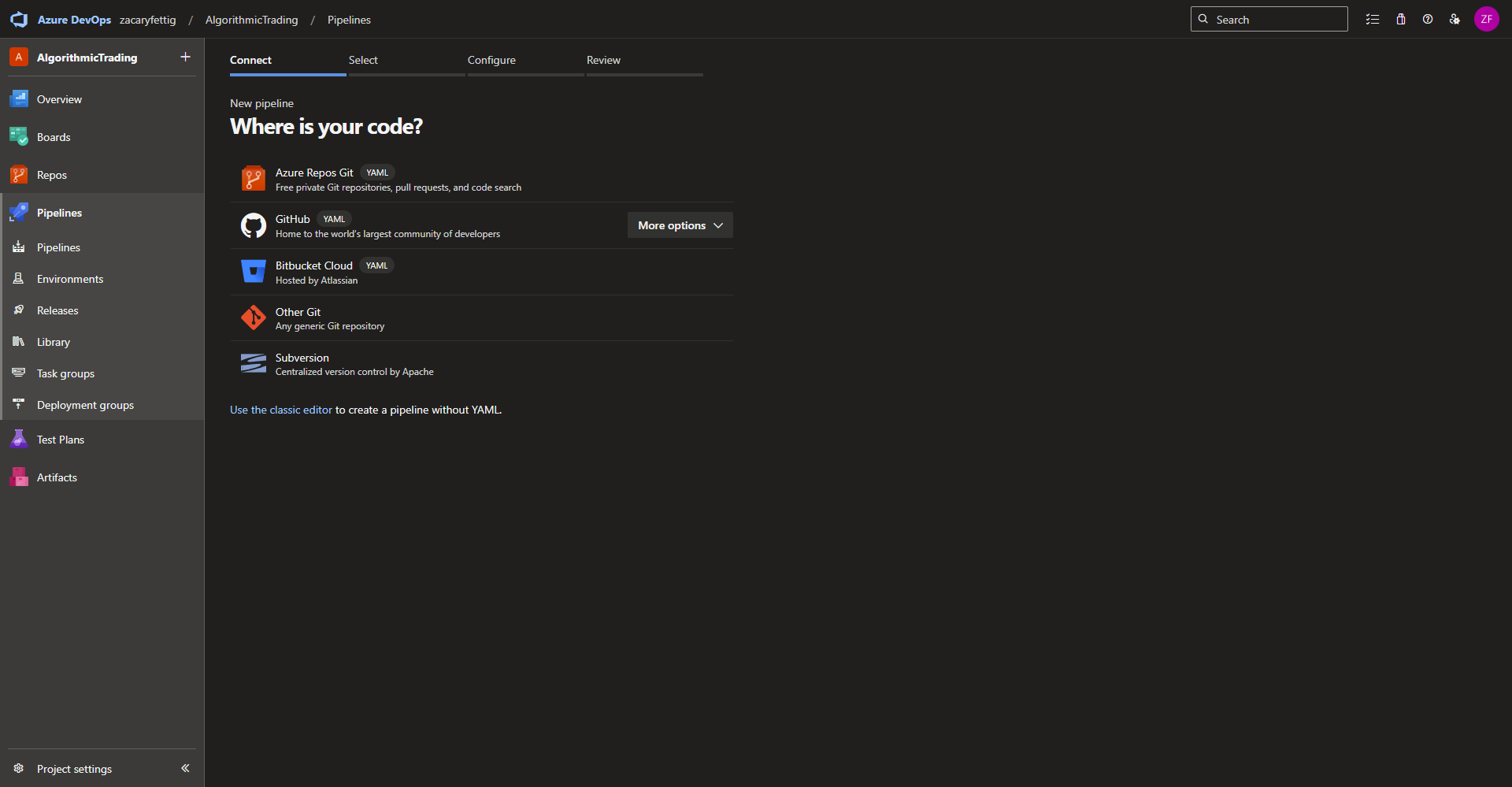
Specifying new or existing pipeline file
On the configure your pipeline page, select starter pipeline for a new pipeline or existing if there is already a pipeline yaml file within your repository that will be used for this pipeline. 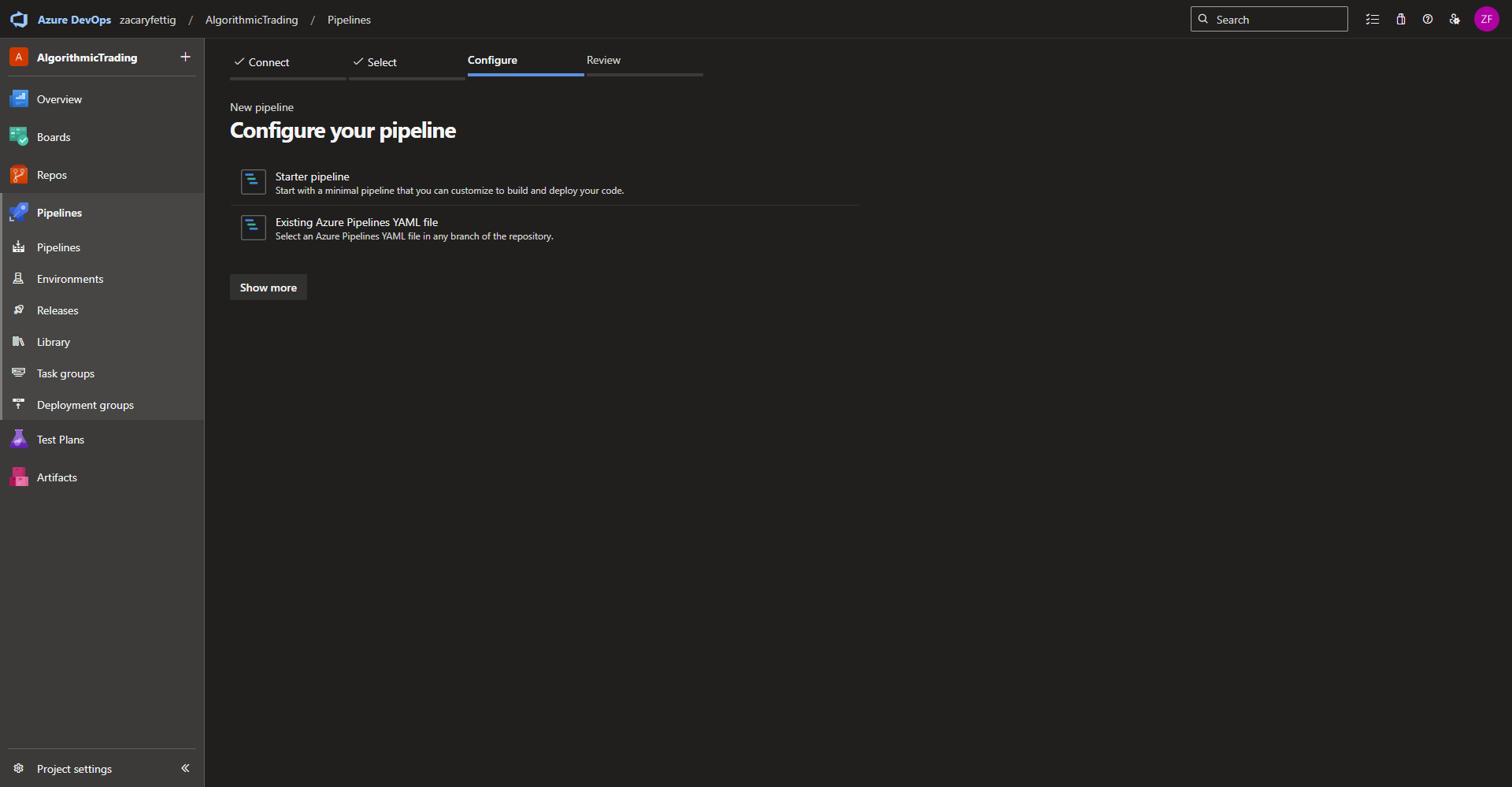
Completing the setup
Now the pipeline file can be edited, saved, or ran for the first time. 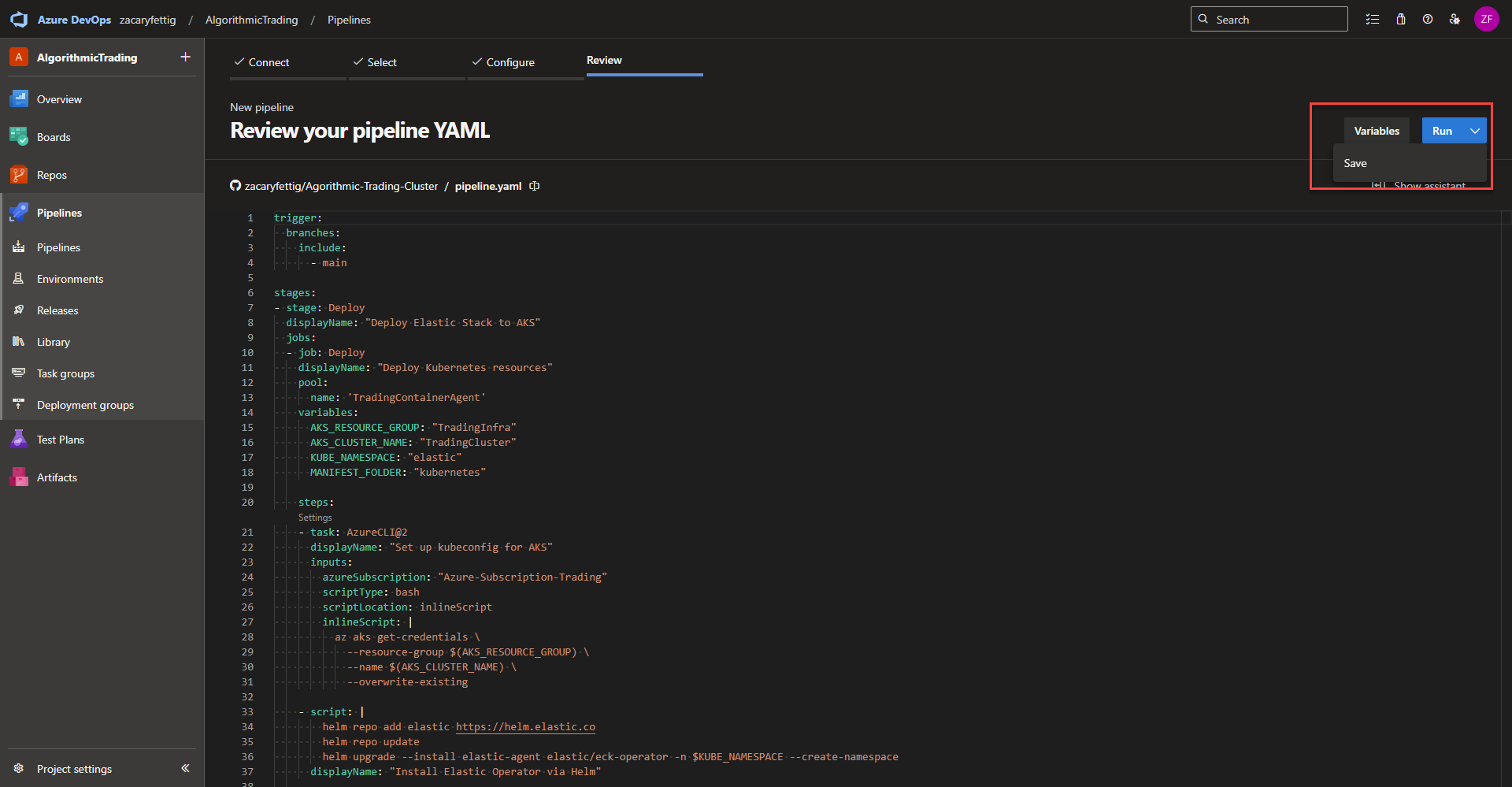
Azure Devops Pipeline Deployment Code
This Azure DevOps pipeline automates the deployment of the Elastic Stack into an Azure AKS Cluster.
Summery of events:
-
Triggers on changes to the main branch
-
Connects securely to AKS
-
Installs the Elastic Cloud on Kubernetes (ECK) Operator using Helm
-
Deploys Elasticsearch, Kibana, Fleet Server, and integrations using Kubernetes YAML manifests
Pipeline Trigger
This tells the pipeline when to run. Azure DevOps monitors the main branch of the repository that was configured for the pipeline. Any commit or merge into main automatically triggers the pipeline.
trigger:
  branches:
    include:
      - main
pipline variables
The variables section is dedicated to defining global variables that used throughout the pipeline file.
The Alpaca Trading application needs login information passed down to the container. The information is stored as secret variables in Azure Devops and the implementation will be discussed more later on in this documentation. The variables below are global variables that don’t require being hidden in secrets. They are the values needed to build the container image from the repository and deploy the resources to the AKS cluster.
Global Variables:
-
AZURE_SUBSCRIPTION: The subscription where all the resources are located.
-
POOL_NAME: The agent pool defined in the Azure Devops Project Settings that runs the jobs.
-
ACR_NAME: The Azure Container Registry where the container images are stored.
-
IMAGE_NAME: Name of the Trading App Docker image stored in Azure Container Registry
-
TAG: Tag of the docker image in ACR
-
AKS_RESOURCE_GROUP: Name of the resource group that has access to connect the AKS Resources.
-
AKS_CLUSTER_NAME: Name of the AKS Cluster
-
KUBE_NAMESPACE: Kubernetes Namespace the Kubernetes Resources will get applied.
-
MANIFEST_FOLDER: The folder within the code repository where the Kubernetes Yaml files live. Nested folders can be defined like ./kubernetes/api
variables:
  # Pipeline configuration
  AZURE_SUBSCRIPTION: "Azure-Subscription-Trading"
  POOL_NAME: "TradingContainerAgent"

  # ACR
  ACR_NAME: "kubetrading"
  IMAGE_NAME: "tradingapp"
  TAG: "latest"

  # AKS Kubernetes
  AKS_RESOURCE_GROUP: "TradingInfra"
  AKS_CLUSTER_NAME: "TradingCluster"
  KUBE_NAMESPACE: "trading-app"
  MANIFEST_FOLDER: "kubernetes/TradingAppDeploy"
Stages | Agent Pool Selection | pipeline variables
Stages and jobs – A stage is used to group major milestones in a pipeline, such as building the application, running tests, deploying to staging, or deploying to production. Tasks are what actually perform the work, while jobs group related tasks together within a stage.
Pool – Specifies which agent pool runs the job (Self Hosted Agent Pool or Microsoft Managed Pool). Add the agent pool name here as configured in the Azure Devops Project Settings Page > Piplines > Agent pools.
Task: AzureCLI@2 – This tells the pipeline to run the below script on Azure CLI.
ScriptType – This tells Azure Devops that the the script will be running as bash script
InlineScript: – runs a script inside the pipeline. The script commands can be listed as they normally would be within a shell/command line after that point.
stages:
- stage: BuildImage
  displayName: Build TradingApp Container Image
  jobs:
  - job: Build
    displayName: ACR Build
    pool:
      name: $(POOL_NAME)
    steps:
    - task: AzureCLI@2
      displayName: Build image in ACR
      inputs:
        azureSubscription: $(AZURE_SUBSCRIPTION)
        scriptType: bash
        scriptLocation: inlineScript
        inlineScript: |
          az acr build --registry $(ACR_NAME) --image $(IMAGE_NAME):$(TAG) Go
Authenticate with Kubernetes
Runs the CLI command to add the credentials to the kubeconfig used to authenticate with Kubernetes. A AzureCLI@2 task authenticates to Azure using a preconfigured service connection and executes CLI commands in that context. Once this is done kubectl and helm commands can communicate with the cluster. Service connections for enabling the pipeline to other Azure hosted resources can be set in the pipeline project settings > service connections. A service connection setup for the scope of subscription is needed for this section to complete the task.
- stage: DeployTradingApp
  displayName: "Deploy TradingApp to AKS"
  dependsOn: BuildImage
  jobs:
  - job: Deploy
    displayName: "Deploy Kubernetes resources"
    pool:
      name: $(POOL_NAME)
    steps:
    - task: AzureCLI@2
      displayName: "Set up kubeconfig for AKS"
      inputs:
        azureSubscription: $(AZURE_SUBSCRIPTION)
        scriptType: bash
        scriptLocation: inlineScript
        inlineScript: |
          az aks get-credentials \
            --resource-group $(AKS_RESOURCE_GROUP) \
            --name $(AKS_CLUSTER_NAME) \
            --overwrite-existing
Apply Kubernetes YAML
Applies all Kubernetes yaml manifests from the repository folder specified in the MANIFEST_FOLDER variable.
The first script section creates a namespace named trading-app to group the related resources for the deployment.
The second script section creates a secret that will pass in the Alpaca Trading Environment Variables into the Kubernetes Deployment which will then pass it on to the application. On the editing page of the pipeline file inside Azure Devops there is a variables tab/button in the top right corner next to the run button. In that area secret variables can be defined that can be used within the pipeline. The Kubernetes Secret references those variables within the pipeline.
The third script section exports the container app image name, sets the namespace used for applying the manifests, and applies the Kubernetes Manifest Files and checking each yaml file for the variable TRADING_APP_IMAGE and replacing it with the variable named TRADING_APP_IMAGE specified in the export code line above.
IMAGE: DeployTradingApp8
    - script: |
        kubectl create namespace $(KUBE_NAMESPACE) --dry-run=client -o yaml | kubectl apply -f -
      displayName: "Creat Kubernetes namespace if it doesn't already exist"

    - script: |
        kubectl create secret generic alpaca-secrets \
          --namespace $(KUBE_NAMESPACE) \
          --from-literal=APCA_API_KEY=$APCA_API_KEY \
          --from-literal=APCA_API_SECRET=$APCA_API_SECRET \
           --from-literal=APCA_BASE_URL=$APCA_BASE_URL \
          --dry-run=client -o yaml | kubectl apply -f -
      displayName: "Create Alpaca Secret"

    - script: |
        export TRADING_APP_IMAGE=$(ACR_NAME).azurecr.io/$(IMAGE_NAME):$(TAG)

        kubectl config set-context --current --namespace=$(KUBE_NAMESPACE)

        for f in $(MANIFEST_FOLDER)/*.yaml; do
            sed -i "s|\${TRADING_APP_IMAGE}|$TRADING_APP_IMAGE|g" "$f"
            kubectl apply -f "$f"
        done
      displayName: "Deploy TradingApp with dynamic image"
Deploying Azure Devops Pipline
Running the pipeline – To Kick off the deployment, select run from the to right side of the pipeline editing page. Select Run again once the pop up window appears. 

Viewing pipline details – Azure Devops will automatically redirect to to the progress page to show the running pipeline. In the stages section click on the in progress stages to see the details on what is currently being worked on.
Azure Completing Jobs – The pipeline will run through all of the jobs and show a green check mark upon successful completion. It will notify and show the logs of any errors that cause the pipeline to fail which can directly be used for troubleshooting. Once this runs successfully, all of the required resources for monitoring the cluster with Elastic will have been deployed. 
Confirming deployment of resources
# View namespaces on the cluster
kubectl get namespaces

# Show secret that was deployed during pipeline run
kubectl get secrets -n trading-app

# Show status of pod deployment
kubectl get pods -n trading-app

# Show in depth details about the pod and any pod errors
kubectl describe pod <pods name> -n trading-app

# View logs that the container outputs
kubectl logs <pod name> -n trading-app